
Pack Branding
Customize window title, menu text, colors and hide Realms button. Perfect for modpack creators.
- Loaders
- Fabric
- Downloads on Modrinth
- 2.3K
- Followers on Modrinth
- 1
- versions
- 8
- Updated
- September 17, 2026Sep 17
- Published
- in 2026
At a glance
Install in the game only; not needed on the server
PackBranding
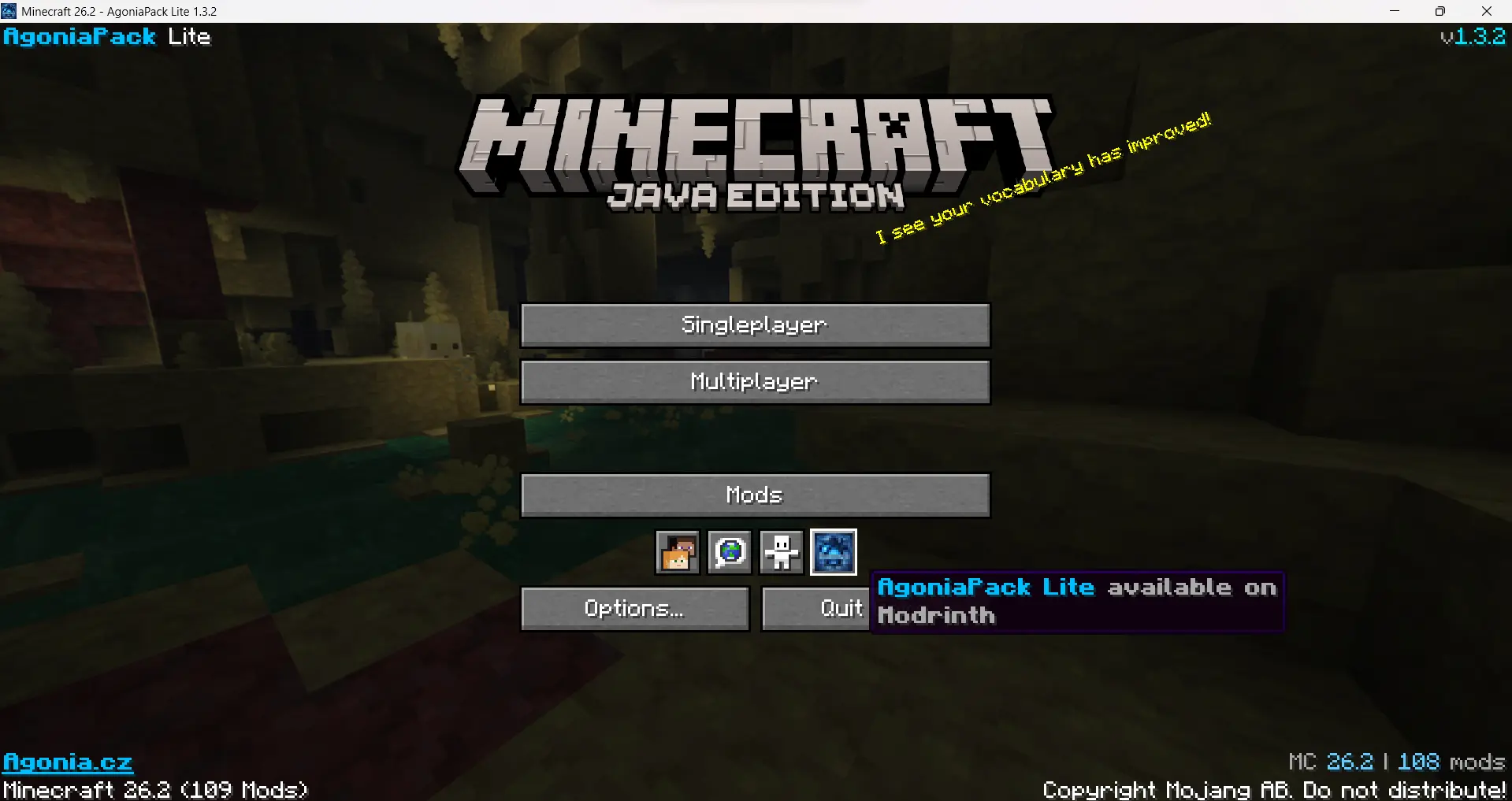
Make Minecraft feel like your modpack. PackBranding is a lightweight, client-side Fabric mod that lets modpack creators rebrand the game window, the main menu and the pause menu — no coding required, just a couple of config files.
Everything is optional and configurable, so you only change what you want.
⚠️ Versions older than 1.2.0 are no longer supported. Please update to the latest release.
✨ What it can do
- 🪟 Custom window title — replace the boring "Minecraft 26.2" title bar with your pack's name, using dynamic tokens.
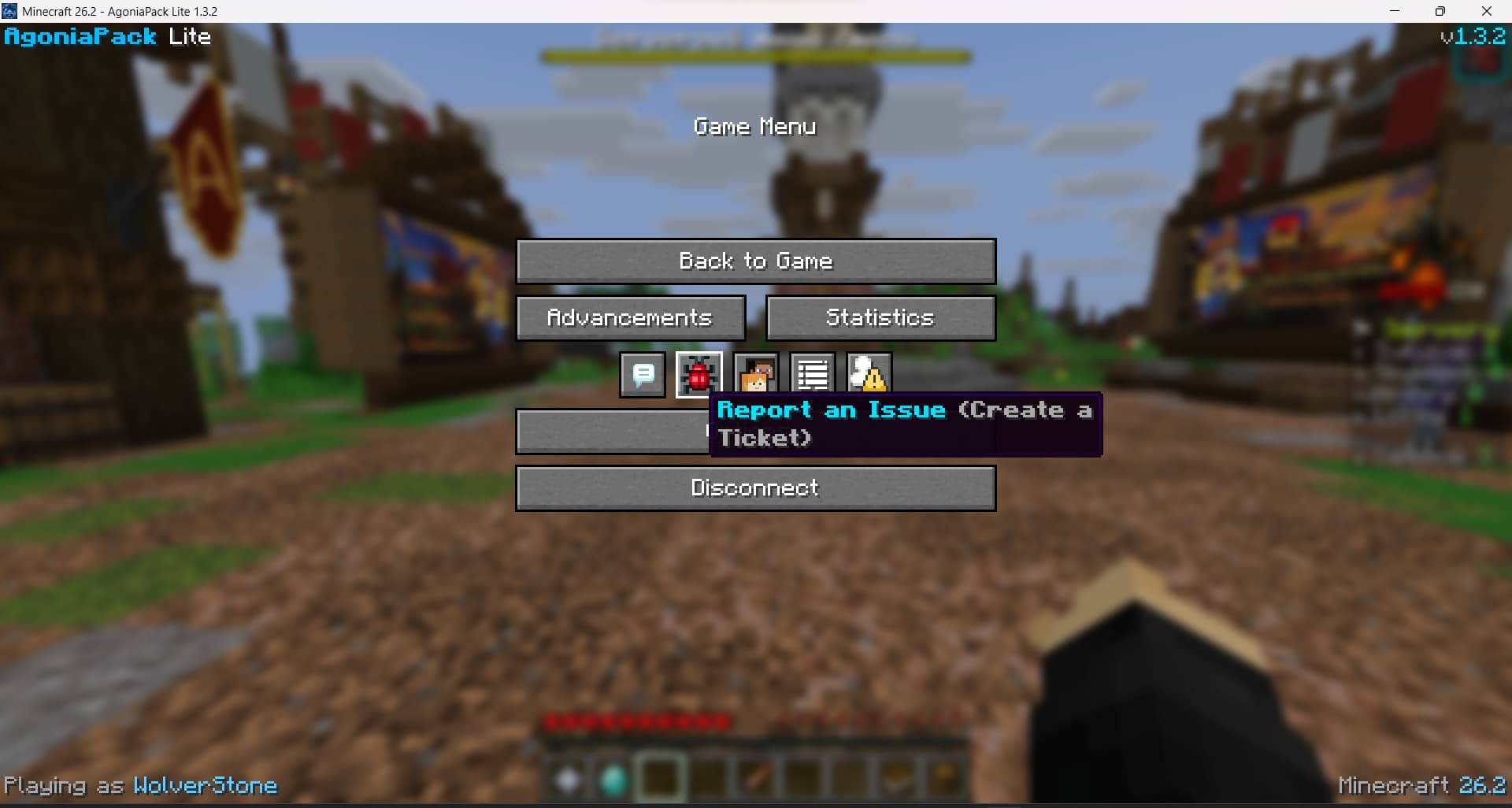
- 📝 Menu text — show custom branded text in any of the four corners of the main menu and the pause menu, a separate text per corner.
- 🔗 Clickable links — turn part of any menu text into a link with
[label](https://…), opened via the vanilla confirmation prompt. - 🔘 Icon buttons — add your own clickable icon buttons (Discord, website, …) to the pause menu and title screen, position them anywhere in the row, and use a PNG or a built-in sprite.
- 🚫 Hide vanilla icons — remove the bug-report / feedback / player-reporting / friends icons from the pause menu and replace them with your own.
- 🎨 Full color support — hex colors (
#RRGGBB) and classic Minecraft color codes (&c,&a,&l, …). - 🔢 Dynamic tokens — automatically insert the Minecraft version, your pack version, the player name, the mod count, or any mod's version.
- 🛰️ Hide Realms — remove the Realms button and its notifications from the main menu for a cleaner look.
- 🖼️ Custom window icon — swap the window/taskbar icon for your own.
⚙️ How it works
On first launch, PackBranding creates a single config file at:
.minecraft/config/packbranding/config.jsonEdit it, restart the game, and your branding is applied. A working example is generated on first run. Every section includes a _comment field explaining it (the mod ignores all _-prefixed keys, they're just in-file documentation).
config.json
{
  "packVersion": "1.0",
  "windowTitle": {
    "enabled": true,
    "title": "Minecraft {mcversion}"
  },
  "icon": {
    "enabled": false
  },
  "hideRealms": true,
  "mainMenu": {
    "enabled": true,
    "aboveCopyright": true,
    "topLeft": "&6&lMyPack",
    "topRight": "&7v{packversion}",
    "bottomLeft": "[Website](https://example.com)",
    "bottomRight": "&8| &fMC {mcversion}"
  },
  "pauseMenu": {
    "enabled": true,
    "topLeft": "&6&lMyPack",
    "topRight": "&7v{packversion}",
    "bottomLeft": "&7Playing as &f{username}",
    "bottomRight": "&8| &fMC {mcversion}"
  },
  "menuButtons": {
    "enabled": true,
    "title": [
      { "icon": "example.png", "url": "https://example.com", "tooltip": "&9Visit our website" }
    ],
    "pause": [
      { "icon": "example.png", "url": "https://example.com", "tooltip": "&9Visit our website" }
    ],
    "hidePauseIcons": []
  }
}
Each menu has four independent corners (topLeft, topRight, bottomLeft, bottomRight) — leave one empty to render nothing there. On the title screen, aboveCopyright: true keeps the bottom corners above the vanilla copyright/version line.
🔤 Formatting reference
These apply to every menu text field and tooltip.
Tokens
| Token | Replaced with |
|---|---|
{mcversion} | Current Minecraft version |
{packversion} | packVersion from config.json |
{username} | Current player name |
{modcount} | Number of loaded mods |
{modversion:modid} | Version of a specific mod (window title only) |
Colors & styles
| Code | Meaning | Code | Meaning | |
|---|---|---|---|---|
&0–&9, &a–&f | Standard colors | &l | Bold | |
#RRGGBB | Any hex color | &o | Italic | |
&r | Reset | &n | Underline | |
&m |
Links
Turn part of any text into a clickable link:
[Website](https://example.com)Clicking it opens the URL after the vanilla "Open this link?" confirmation.
🖼️ Custom icon
- Set
"icon": { "enabled": true }inconfig.json. Provide either:
- a single square PNG at
config/packbranding/icon.png(256×256 works well), or - a split pair:
config/packbranding/icon/icon_16x16.pngandicon_32x32.png(both required).
- a single square PNG at
- Restart the game.
🔘 Icon buttons
Add clickable icon buttons to the pause menu and title screen — great for a Discord invite, your website, a wiki, etc.
- Drop icon PNGs (16×16 recommended) into
config/packbranding/buttons/. - List them under
menuButtonsinconfig.json— separately for thetitlescreen and thepause(ESC) menu:
"menuButtons": {
  "enabled": true,
  "title": [
    { "icon": "discord.png", "url": "https://discord.gg/example", "tooltip": "&9Join our Discord" }
  ],
  "pause": [
    { "icon": "website.png", "url": "https://example.com", "tooltip": "Visit our website" }
  ],
  "hidePauseIcons": ["menu.reportBugs"]
}- Restart. Clicking a button opens its link after the vanilla "Open this link?" confirmation. Buttons with a missing icon or invalid link are skipped.
Using a built-in (vanilla) icon
Instead of a PNG file, an icon can reference a vanilla/atlas sprite by prefixing it with sprite::
{ "icon": "sprite:icon/language", "url": "https://example.com", "tooltip": "Language-style icon" }Useful sprites: icon/language, icon/accessibility, pause_menu/bug, pause_menu/social_interactions, pause_menu/player_reporting. Sprites from other mods work too (e.g. modid:path).
Button position
Each button may set an index to place it at an exact spot in the icon row (0 = first, before the vanilla icons). Omit it (or use -1) to append at the end. This works on both the title screen and the pause menu, and the row is re-centered automatically so there are no gaps.
{ "icon": "example.png", "url": "https://example.com", "tooltip": "First!", "index": 0 }Hiding vanilla pause icons
hidePauseIcons removes vanilla icons from the ESC menu icon row by name, so you can replace them with your own. Available keys:
| Key | Icon |
|---|---|
menu.reportBugs | Report bugs |
menu.sendFeedback | Give feedback |
menu.playerReporting | Player reporting |
menu.online | Friends |
(Icons added by other mods, like ModMenu, can't be hidden this way.)
📦 Installation
- Install Fabric Loader.
- Install Fabric API.
- Drop
packbranding-x.x.x.jarinto yourmodsfolder. - Launch once to generate
config.json, then edit it.
PackBranding is client-side only — players don't need it on the server, and it's safe to bundle in any modpack.
✅ Requirements
- Minecraft 26.2
- Fabric Loader 0.19.3+
- Fabric API
📄 License
Apache 2.0 — feel free to include it in any modpack.
FAQ
How to install Pack Branding?
Install Fabric for your Minecraft version, download Pack Branding for the same version and loader, put the file into the mods folder and launch the game with the loader profile.
Which Minecraft versions does Pack Branding support?
Pack Branding has builds for Minecraft 1.21.11–26.3.
Is Pack Branding needed on the server?
Client only — no need to install it on the server


