
Resource Tree
Organize your resource packs into folders — drag & drop, navigate, color-code, rename, delete, create folders, search, sort, and manage each pack in-game with ease.
Fabric
- Loaders
- Fabric
- Downloads on Modrinth
- 2.1K
- Followers on Modrinth
- 7
- versions
- 6
- Updated
- May 6, 2026May 6
- Published
- in 2026
At a glance
Runs on Fabric
For Minecraft 1.21.11–26.1.2
Client only — no need to install it on the server
Latest version — 1.2.2+26.1 from May 6, 2026
Requires Fabric API
License MIT — free
Where it's neededGame versions1.21.11–26.1.2
In gamerequiredOn servernot needed
Install in the game only; not needed on the server
Resource Tree adds folder navigation to Minecraft's resource pack screen, so you can organize your packs into subfolders instead of scrolling through one massive list.

📁 Features
🌿 Folder Navigation
- Subfolders inside your
resourcepacksdirectory automatically appear in the resource pack screen - Click the → arrow or double-click a folder to navigate into it
- A ← Back entry appears at the top so you can navigate back up
- Each folder shows a pack count next to `` indicating how many packs are directly inside
🎨 Folder Options
- Right-click any folder to open a context menu
- Pick from 6 colors to color-code your folders: Default, Red, Blue, Green, Purple, and White
- Colors are saved and persist across game restarts
- Rename a folder directly inline
- Delete a folder (with confirmation if it contains files)

✅ Enable / Disable All
- Right-click a folder and click Enable All → to move all packs inside it to Selected at once
- Click Disable All ← to move them all back to Available
- Only affects packs directly inside that folder — nested subfolders are not affected
➕ New Folder
- Click the
+button next to the≡button to create a new folder in the current directory - Instantly enters rename mode so you can name it right away

📊 Advanced Sorting ▫️NEW▫️
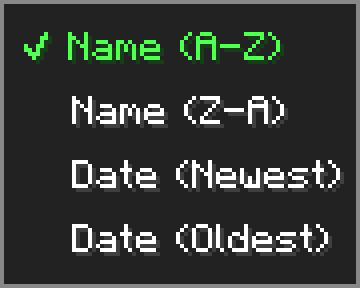
- Click the
⇅button next to the search bar to open the sort menu - Sort your packs by Name (A-Z), Name (Z-A), Date (Newest), or Date (Oldest)
- Sort setting is saved and persists across game restarts
- Folders always stay pinned to the top regardless of sort mode
🖱️ Drag & Drop ▫️NEW▫️
- Hold and drag any resource pack from the available list to move it into a folder
- A ghost preview follows your cursor while dragging
- Hover over a folder to highlight it as a drop target — release to move the pack inside
- Drag onto the ← Back entry to move a pack up one folder level
- Shift+left-click any resource pack to instantly move it to the Selected list
⚙️ Options Menu
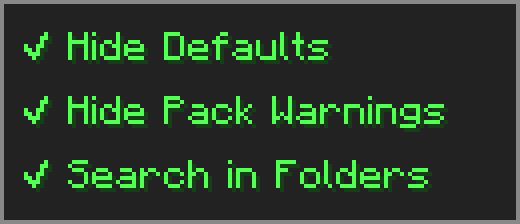
Click the ≡ button next to "Open Pack Folder" to open the options menu.
- Hide Defaults — hides High Contrast and Programmer Art from the available list
- Hide Pack Warnings — hides the red warning color on outdated resource packs
- Search in Folders — makes the search box look inside subfolders too
🔧 Compatibility
- ⚠️ Essential — dragging packs from Available to Selected may behave unexpectedly — use the arrow button or shift+click instead.
- ➕ Resourcify — works great for browsing and installing packs directly in-game.
FAQ
How to install Resource Tree?
Install Fabric for your Minecraft version, download Resource Tree for the same version and loader, put the file into the mods folder and launch the game with the loader profile.
Which Minecraft versions does Resource Tree support?
Resource Tree has builds for Minecraft 1.21.11–26.1.2.
Is Resource Tree needed on the server?
Client only — no need to install it on the server
License and source
MIT Licensefree to use and share with credit to the author
Similar mods
All management mods →


More mods by this author
 Scroll Walk↓ 220K
 Morphling↓ 15.9K
 Subtitles+↓ 5.9K
Often needed together
 Fabric API↓ 283M